


Microsoft’s June 30 validation test is already surfacing certificate trust issues for some Teams Direct Routing environments. Organizations using AudioCodes SBCs with mTLS enabled should verify firmware, Teams TLS context settings, and required root certificate chains before calling issues affect users.
Editor’s Note: Updated July 2026 to reflect Microsoft’s June 30 validation test for Teams Direct Routing certificate readiness.
Action Needed: Microsoft’s Teams Direct Routing Certificate Test Is Exposing Readiness Gaps
Microsoft’s June 30, 2026 validation test is already helping identify Teams Direct Routing environments that may not trust the updated certificate chain. If your organization uses AudioCodes SBCs with mTLS enabled, review your configuration now to reduce the risk of call routing issues. This article explains how to check whether your SBC is affected, verify the required certificate chains, and update the Teams TLS context settings.

Introduction
Microsoft’s Direct Routing updates include guidance for organizations to check the installed root certificate chains on their Teams Direct Routing Session Border Controllers (SBCs). Microsoft’s June 30, 2026 validation test is now helping identify environments that may not trust the updated certificate chain, which can affect TLS connectivity between Teams and the SBC.
This article was originally published ahead of Microsoft’s remediation timeline. With the June validation test now surfacing potential readiness gaps, Teams Direct Routing customers should review their SBC configuration, firmware, Teams TLS context settings, and required root certificate chains as soon as possible. These updates are especially important for organizations validating Teams Direct Routing certificates on AudioCodes SBCs with mTLS enabled.
In a nutshell:
- This note applies to Teams Direct Routing SBCs where Mutual TLS authentication (mTLS) has been enabled.
- If the firmware on your AudioCodes SBC is at least 7.4.600, you just need to enable a parameter on the SBC.
- If it isn’t, you will need to either update the firmware or manually install at least two (2) root chains and turn the aforementioned switch on.
The information in this article applies to AudioCodes Teams Direct Routing SBCs. If you are using another manufacturer’s SBC, please check their support pages or contact their service department for guidance.
How To Check Your Teams Direct Routing Certificates
Does this apply to our SBCs?
- Microsoft’s announcement infers that this applies to all Teams Direct Routing SBCs.
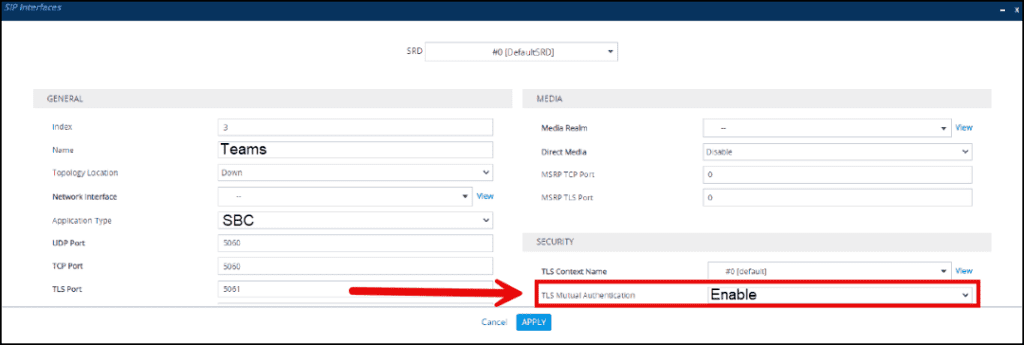
- The AudioCodes technical note MC1213773 ACTION REQUIRED: TEAMS DIRECT ROUTING CHANGE (this can only be accessed if you have an AudioCodes support account) states that the Microsoft note only applies to AudioCodes Teams Direct Routing-enabled SBCs where mutual TLS authentication has been enabled on the SIP interface associated with the Teams Proxy Set.
- To determine if mutual TLS has been enabled for Teams:
- Sign on to your SBC.
- Navigate to the SIP Interfaces table at Setup->Signaling & Media ->Core Entities->SIP Interfaces.
- Click on the “Teams” SIP interface.
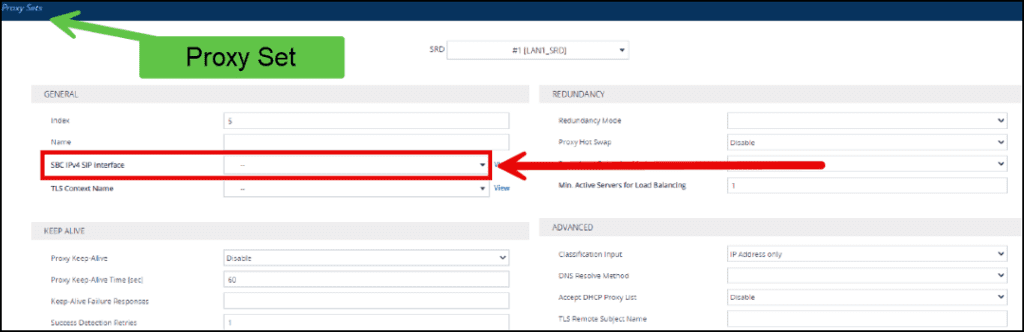
- If the interface is not named “Teams”, go to Setup->Signaling & Media->Core Entities->Proxy Sets and find the “Teams” Proxy Set. The associated “SIP Interface” can be found in the “SBC IPv4 SIP Interface” field.


What is TLS Mutual Authentication?
Under standard transaction layer security (TLS) authentication, only the server is authenticated. In Mutual TLS or mTLS, both the client and server must present and verify their respective certificates.
The previous eGroup blog article, Microsoft Teams Direct Routing and Mutual TLS Authentication, describes how to set this up and includes our recommendation to enable mTLS on Teams Direct Routing SBCs.


We are using mTLS for Teams on an AudioCodes Teams Direct Routing-enabled SBC, now what?
You will first need to verify that a parameter on the Teams TLS context is properly configured and that all seven (7) of the Microsoft-provided certificate root chains are installed on the SBC.
Teams TLS Context Setting
- Backup the SBC’s configuration.
- Navigate to Setup->IP Network->Security->TLS Contexts on your SBC.
- Click on the context you are using for Teams; it will usually be named “Teams”.
- If you aren’t sure which one it is, you can look at the “TLS Context Name” field on the Teams Proxy Set.
- The context used by Teams should only be used for Teams Direct Routing. It should only be assigned to the Teams Proxy Set. Your SBC should have at least two (2) TLS contexts: “Default” and “Teams”. Please contact us if you do not have both!
- The value of the “Use default CA Bundle” will probably be blank. Change it to “Enable”.
- If you do not see the “Use default CA Bundle” option, you will need to update the firmware on the SBC.
- Click the “Apply” button, then save the configuration.
- The SBC will not require a restart after making this change.
- You should not change this setting on the “default”, or any other TLS contexts that you may have on your SBC.
Verifying that you have all the Certificates based on the SBC’s firmware
After turning on the default CA Bundle on the SBC, you can determine if you have all the certificates based on the currently running firmware:
- Your SBC has all the certificates if you are running at least either version 7.4.600 or 7.6.
- If your SBC is running a version between 7.4.300 and 7.4.500 you can use either of these options:
- a) Add these two (2) certificates to your SBC. Follow the instructions in the next section to add these:
| Certificate Authority | Serial Number | Thumbprint |
| DigiCert TLS ECC P384 Root G5 | 0x09e09365acf7d9c8b93e1c0b042a2ef3 | 17F3DE5E9F0F19E98EF61F32266E20C407AE30EE |
| DigiCert TLS RSA 4096 Root G5 | 0x08f9b478a8fa7eda6a333789de7ccf8a | A78849DC5D7C758C8CDE399856B3AAD0B2A57135 |


- b. Update the firmware on the SBC.
- Do not upgrade from a 7.4 version to 7.6 to add the certificates. Upgrading from 7.4 to 7.6 constitutes a major upgrade to the SBC. We recommend against doing this upgrade solely to ensure that all the certificates are installed on your SBC.AudioCodes has a “Long Term Support (LTS)” and “Latest Release (LR)” version of the 7.4 firmware available for download (there is currently only an LR of the 7.6 available)
- At eGroup, we advise our clients to only upgrade their SBCs with the LTS version. We also tell our clients to only install an LR version if directed to do so by AudioCodes or us. This is one of those rare occasions where we tell our customers to go ahead and install the current LR version of the 7.4 firmware to get the certificates onto their SBCs.
- c. If the SBC is running a version older than 7.4.300, you can use either of these options:
- Add all seven (7) certificates to your SBC (see below).
- Update the firmware on the SBC.
- If you are running a flavor of the 7.2 firmware older than 7.20A.204.549, you must follow the guidance in the AudioCodes SBC Version 7.2 to 7.4 Upgrade Procedure document.
- Add all seven (7) certificates to your SBC (see below).
Checking for the Required Root Chains
Here is the list of Root chains that must be installed on the SBCs:
| Certificate Authority | Serial Number | Thumbprint |
| DigiCert Global Root CA | 0x083be056904246b1a1756ac95991c74a | A8985D3A65E5E5C4B2D7D66D40C6DD2FB19C5436 |
| DigiCert Global Root G2 | 0x033af1e6a711a9a0bb2864b11d09fae5 | DF3C24F9BFD666761B268073FE06D1CC8D4F82A4 |
| DigiCert Global Root G3 | 0x055556bcf25ea43535c3a40fd5ab4572 | 7E04DE896A3E666D00E687D33FFAD93BE83D349E |
| DigiCert TLS ECC P384 Root G5 | 0x09e09365acf7d9c8b93e1c0b042a2ef3 | 17F3DE5E9F0F19E98EF61F32266E20C407AE30EE |
| DigiCert TLS RSA 4096 Root G5 | 0x08f9b478a8fa7eda6a333789de7ccf8a | A78849DC5D7C758C8CDE399856B3AAD0B2A57135 |
| Microsoft ECC Root Certificate Authority 2017 | 0x66f23daf87de8bb14aea0c573101c2ec | 999A64C37FF47D9FAB95F14769891460EEC4C3C5 |
| Microsoft RSA Root Certificate Authority 2017 | 0x1ed397095fd8b4b347701eaabe7f45b3 | 73A5E64A3BFF8316FF0EDCCC618A906E4EAE4D74 |
The links in the table will allow you to download the certificate chains. Please note that these are “.CRT” files. They will have to be converted to PEM/ASCII format. You may be able to convert these using the “SSL Converter” tool on the SSL Shopper website; otherwise, use your tool of choice.


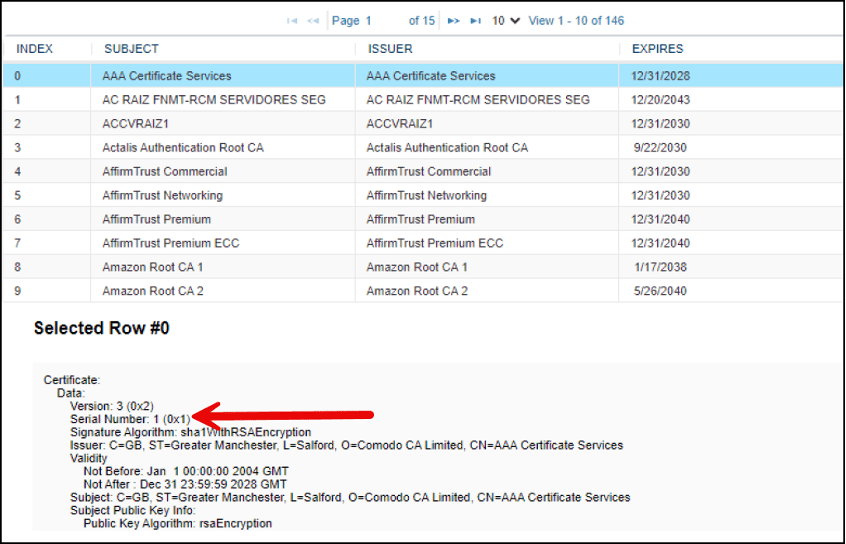
To “visually” check to see if you have all these root chains:
- On the SBC, navigate to Setup->IP Network->Security->Default CA Bundle.
- Scroll through the list to locate the certificate by its “Subject Name”.
- Once you’ve found it, verify that the serial number matches the number in the table above.
- Note all root chains that you are missing.
Importing missing Root Certificates
- The SBC will not require a restart after importing the certificate.
- Backup the SBC’s configuration.
- Navigate to the Teams TLS Context and click on “Trusted Root Certificates” at the bottom of the page.
- Click the “Import” button.
- Select the “PEM/ASCII” formatted certificate file.
- Follow the prompts.
- The SBC will not require a restart after importing the certificate.
- Install additional certificates as needed.


Summary
Microsoft’s Teams Direct Routing certificate changes are now actively surfacing readiness gaps for some SBC environments. Organizations using AudioCodes SBCs with mTLS enabled should verify that the required root certificate chains are installed and that the Teams TLS context is configured correctly.
For AudioCodes SBCs running supported firmware, remediation may be as simple as enabling the default CA bundle on the Teams TLS context. Older firmware versions may require a firmware update or manual installation of the required root certificate chains. Failure to address these requirements may prevent the Direct Routing SBC from communicating with Teams.
Need help reviewing your Teams Voice environment? Explore our Teams Phone services to validate Direct Routing readiness, reduce call disruption risk, and support a more reliable Microsoft Teams calling experience.
Need Help With Teams Direct Routing?
Validate Your Teams Direct Routing Configuration Before Certificate Issues Affect Calling
Microsoft’s June 30, 2026 validation test is already surfacing potential certificate trust issues in some Teams Direct Routing environments.
If your organization uses AudioCodes SBCs with mTLS enabled, eGroup can help review your configuration, confirm certificate readiness, and guide remediation before call routing issues affect users.